Eye gaze coding with Blockly
I’ve just been filling in a project evaluation form for my project funded by The Blockly Accessibility Fund and wanted to take the chance to reflect and share what I’ve been working on.
In this project, I wanted to open up block-based coding (think Scratch, MakeCode, etc) to young people with disabilities who use eye gaze to control their computer. The funding from Google.org has given me a chance to focus on meeting individuals, seeing where they are at, and building tools to give them access to an essential part of the curriculum.
Why this matters
Learning to code is part of learning how computers work, and how you can make them work for you. We want all students to understand how to control and shape the tools they use, not just to be passive consumers. I argue that some of the people who have the most to gain from digital literacy and confidence are those who use assistive technology to give them more access to communication, studies, work, and many aspects of their lives. My goal is for those individuals to have the skills and knowledge to build, steer or demand better assistive technology for themselves and their peers.
The people
The most important part of the project was running user testing sessions with 10 young people. They ranged from driven young adults studying computer science and related subjects in higher and further education, who had learned to code the hard way, all the way to children in a specialist primary school who had never been exposed to any kind of coding at all.
A young girl who thought coding was for boys. A teenager who wants to learn to code to make millions, and a young adult who got into coding by building mods for her favourite games.
Sessions mainly took place on Zoom, with some in person where possible. I’m grateful to all the users and facilitators (parents, teachers, therapists) for working with me on what was sometimes a very early prototype, and for sharing their enthusiasm for the project. Our sessions were adapted to each person’s setup and access needs, and varied depending on what stage the project was at - sometimes testing a new idea, or validating lessons learned from previous sessions. Thanks also to Melanie Boyle for bringing her AAC expertise and warmth to many of the user testing sessions.
The students enjoyed trialing the eye gaze interfaces for block-based coding, even though they had no prior experience of any kind of coding or gaming. This has given the students confidence to try new things on their eye gaze accessible computers, which they did not have the confidence to try before. The students are now also aware that coding is for everyone, no matter their access needs. The fact that it looks the same as the non-accessible version is great, because eye gaze users and non eye gaze users can code in the same way, or alongside each other.
Speech and Language Therapy Assistant at Pace School (independent special school for 3-16)
Eye gaze for computer access
Some people with physical disabilities can’t use a keyboard, mouse, touch screen, or other standard ways to control a computer. But often, even when other motor control is limited, eye control is still good - this is common, for example, with cerebral palsy.
An eye tracker is a small device with cameras that attaches to your monitor and plugs into your computer. It works out where you are looking on the screen, and a piece of software uses this to control an interface.
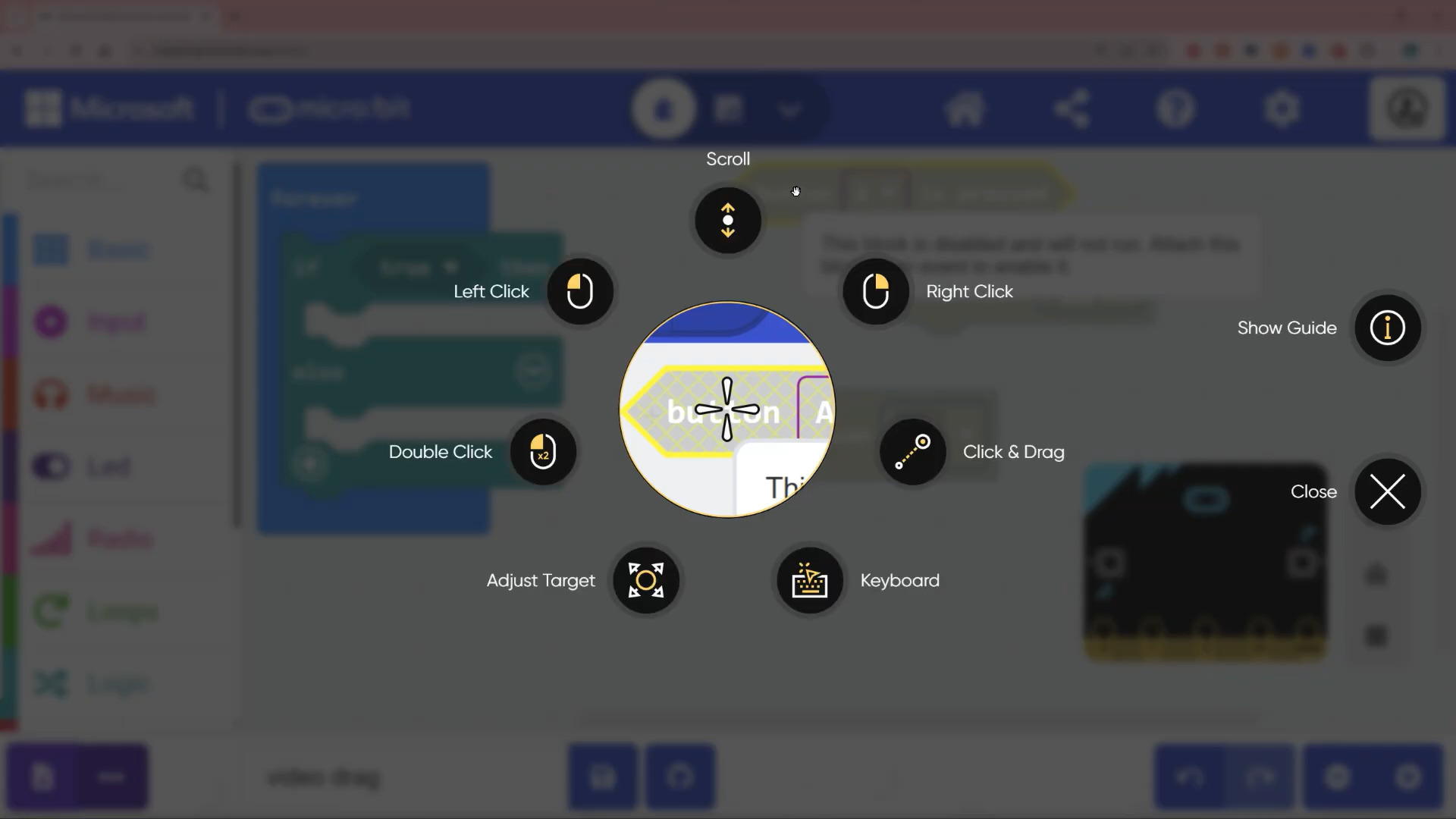
In practice, this usually means looking at a large target on the screen to a set amount of time until it registers as a “click”. Many people first encounter eye gaze through communication: an AAC (Augmentative and Alternative Communication) device where you look at a symbol to say a word, or at letters to build a sentence.
With more experience, some people move onto directly controlling a mouse pointer - you look at a point on screen, hold your gaze there, and it clicks, or opens an interaction menu. This opens up access to many more things on a computer, but it is harder, requiring good oculomotor control, lots of practice, and a decent eye tracker.
Different user groups
In user testing we found that 3 main groups of users emerged, with quite different access needs:
Grid-based users
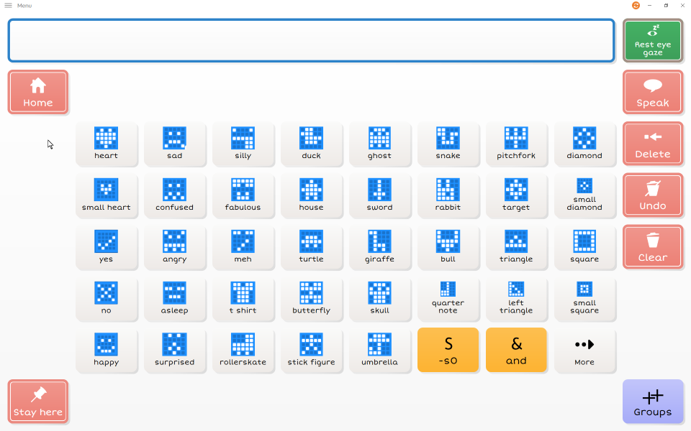
Some children have not yet acquired the skills or experience to directly control a mouse, and need to use a grid-based system where the only requirement is to hold your gaze on large targets. We can give these students a grid-based interface that sends keyboard commands to a coding interface - so long as the application has good keyboard accessibility. Last year, Blockly and The Micro:bit Foundation were working hard to add keyboard controls to the micro:bit MakeCode editor, and other platforms such as Code.org have recently done the same.
We built interfaces for these users, allowing them to independently complete micro:bit coding activities using exactly the same micro:bit MakeCode Editor that a non-disabled peer might use (embedded within a grid-based interface to give them controls). We also created communication pages to allow AAC users (who speak using their device) to discuss their coding projects with all the specialist vocabulary required.
One challenge that we witnessed was how all the layers of cognitive challenge added up - students using assistive technology have far more to learn than someone using standard controls:
- The concept of coding itself: writing instructions and having a computer follow them
- The context: we’re writing code for the micro:bit which can light up and make sounds
- The goal: what we’re actually trying to achieve with a given activity
- The interface: a new grid-based interface with buttons, labels and sub-pages to learn
- The navigation: how to get around the MakeCode editor; when to press enter vs escape vs back, how to navigate a nested toolbox, how dialogues work
With me there to support, it was possible to focus on the learning objective and learn the layers of access as we went along - together proving to the adults around them that they can meaningfully engage with the learning goals. I could add or gradually remove support, to help them achieve what they were picturing, but also test how useable my solution was.
However, a more realistic scenario would be a teacher who isn’t themselves confident with coding, isn’t confident with the MakeCode editor, and isn’t familiar with the grid interface I’ve provided, and who isn’t sure whether a particular student has the cognitive ability to engage with the activity. That’s a lot of barriers stacked up, and all of them obscuring the opportunity for the student to show their competence.
Even in mainstream settings, I’ve spoken to schools who have acquired a box of micro:bits which then languish in a cupboard for years until there was a teacher confident enough to open the box (spoiler: as soon as they’ve taught 1 lesson they realise it’s super easy with all the micro:bit teaching resources). We know from the Department of Education’s report Developing a competency framework for effective assistive technology training by Rohan Slaughter and Tom Griffiths that a lack of basic IT skills is often a barrier for teachers in specialist schools and colleges, which significantly impacts the ability to use AT (assistive technology) to support learners.
To better tackle this barrier, I am working on a new accessible coding introductory curriculum designed specifically for eye gaze or switch access without cursor control, alternative single-click cursor control (eye gaze / touch / head mouse / switch-based gliding cursor) and many other assistive tech setups. We’re both minimising the access barriers in the coding interface, and scaffolding activities to get you used to it step-by-step. If this interests you, sign up here to be involved.
Expert cursor users
Users who are comfortable with “direct pointer control” (i.e. using a mouse with their eyes) could already access mainstream platforms like the micro:bit MakeCode editor well and only needed a couple of pointers to help them get stuck in. This was a hugely positive finding.
One specific challenge here for some users, was dragging blocks around the screen. How well dragging works is very variable: it depends on how smart your eye gaze software is, your calibration, accuracy, and experience. Some users got on fine with most of the dragging, but others found it frequently went wrong, and it was hard to recover.
We worked with an adult eye gaze user (already a coder) to make some videos showing what coding with eye gaze looks like, including tips and tricks for how to use your eye gaze software in the best way.
Intermediate cursor users
Several students reported being comfortable with direct pointer control, but their eye gaze system’s accuracy made pointer control error-prone and frustrating. However, this way of controlling an interface is so much more direct than using keyboard controls that they were not interested in an alternative - they would persist with great patience, but using up a lot of cognitive effort on using the interface, not leaving much space for the learning goals.
For some students, we started with a gridset to learn the context and basic ideas, and then moved to pointer control once we got onto tasks that required full access to the coding toolbox. This helped to remove some of the initial overload and guarantee early success before hitting any access frustrations.
These intermediate or early cursor users would benefit significantly from starting with a simpler environment which requires less dragging, and is more forgiving. Although they can learn to use the more open-ended mainstream platforms, building confidence and familiarity in a simpler environment will help a lot, as well as giving them a chance to prove to those around them that they can do this. This is why the new accessible coding introductory curriculum we are building will focus on being accessible with direct pointer control as well as grid-based control.
What’s available to use
Check out my block coding resources for access to gridsets, videos and more. Contact me for support or guidance or more “work in progress” resources.
What’s next
Guided coding in Grid with eye gaze
My goals going forward are two-fold:
- Build tools that work as a more accessible first coding experience, as a stepping stone towards the mainstream platforms. Make sure students can try coding without juggling several layers of new information and access barriers.
- Show the supporting adults that coding can be accessible, and is an important part of the curriculum for their students. Persuade more people that this is worth doing, and show students that people like them can code.
I am currently collaborating with the NYC Metro Chapter of Makers Making Change on a new accessible coding introductory curriculum design for eye gaze, switch access, and many other assistive tech setups. It’s based on Blockly Games but additionally scaffolds activities step by step, minimises the access barriers in the coding interface, and doesn’t requires any drag operations. Just click on a block to insert it, and rearrange blocks by clicking on connections.
The goal is to provide a first coding environment where access challenges are minimised. We let a student build familiarity with coding concepts in a simpler environment, and get an early sense of success. The scaffolded steps and simple environment make it easier for a teacher to pick up, so they aren’t afraid to give it a go and see what their students are capable of.
We’re planning to trial this with a number of schools this year. If this interests you, sign up here to be involved.